Connecting Your Kajabi Store to Vervante
Set up an automation so Kajabi sends your orders to us for printing and fulfillment.
When a customer buys one of your Kajabi offers, an automation can send Vervante a formatted order email automatically, and our system reads that email and creates the order. You set this up once per offer. The steps below walk through creating the automation and formatting the email so our system can read it.
Step 1: Create Your Offer
In Kajabi, create the one-time payment offer for the product you want us to fulfill, if you do not already have one. Kajabi's help center covers creating a one-time payment offer if you need it.
Step 2: Add an Automation to the Offer
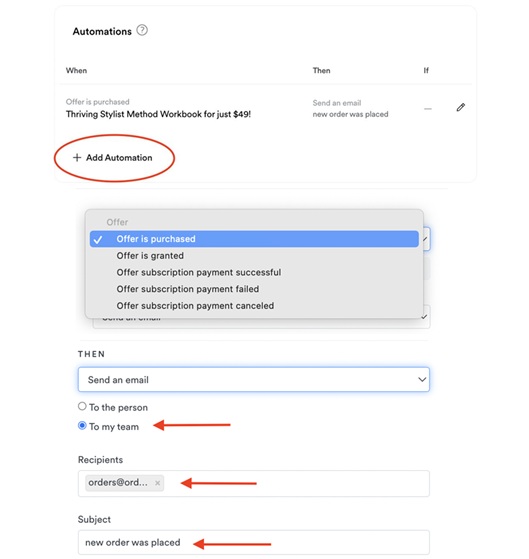
- Scroll down to the automation section of the offer and click Add Automation.
- Open the WHEN dropdown and select offer is purchased. If you want the order sent on a different trigger, choose the option that fits your flow.
- Open the THEN dropdown and select send an email.
- Choose the to my team option.
- Set the recipient and subject using the values below.
Recipient
orders@orders.vervante.com
Subject
new order was placed
Step 3: Fill In the Email Body
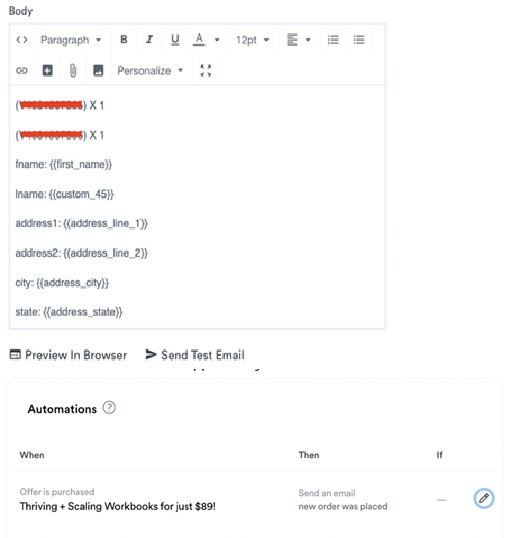
Use Kajabi's Personalize option to insert the customer's order details into the body, following our required format. Start from the template below. Replace the part number line with the Vervante part number for this offer's product, and add another part number line for each additional item you ship with this offer.
(VERVANTE PART NUMBER) X 1
fname: {{first_name}}
lname: {{last_name}}
address1: {{address_line_1}}
address2: {{address_line_2}}
city: {{address_city}}
state: {{address_state}}
zip: {{address_zip}}
country: {{address_country}}
email: {{email}}
shipmode: first_class_package
The field labels, part number format, and shipping codes must match our specification exactly. See the Email Format for Automatic Order Processing page for the authoritative format, including the shipping codes you can use in place of first_class_package.
Step 4: Save and Test
- Click Save for the automation, then Save for the offer.
- Place a test purchase of the offer using your own information.
- Confirm the order appears in your Vervante portal a few minutes after the purchase. If it does not, the email was likely rejected for a formatting reason, so review the format specification and adjust.
Kajabi accounts can be configured in many different ways depending on your theme, integrations, and automation settings, so some adjustments may be needed to match our required text-only format. Vervante is not able to provide technical support for Kajabi configurations, automations, or integrations. If you need help with your Kajabi setup, contact Kajabi support or your developer.
Looking for other setup help? See Order Processing →